Settings
The Settings section contains all configuration options for the add-on.
You can use it to configure:
- Scripts folder location
- External text editor
- Default script storage location
- Quick access to the scripts folder
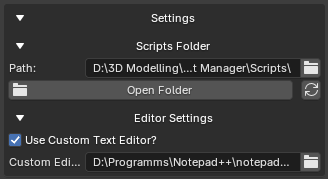
Settings Panel
Scripts Folder
The add-on stores all managed Python scripts inside a dedicated scripts directory.
The current path can be changed at any time.
Path Field
The Path field defines where GH Script Manager will store and search for scripts.
Example:
D:\BlenderScripts
or
C:\Projects\MyTools
The selected folder becomes the root location for:
- Created scripts
- Imported scripts
- Script groups
- Folder navigation
Open Folder
The Open Folder button opens the currently selected scripts directory using your operating system's file manager.
Supported systems:
| Platform | Application |
|---|---|
| Windows | File Explorer |
| Linux | System File Manager |
| macOS | Finder |
This allows quick access to your scripts outside Blender.
Reset Path
The Reset button restores the default scripts location.
Default location:
Addon Folder/Scripts
or the Blender user scripts directory if the add-on cannot create a folder inside the installation directory.
After resetting:
- The path is automatically saved
- The script list is refreshed
- Existing scripts remain untouched
Only the configured path changes. No files are deleted.
Editor Settings
The Editor Settings section controls how scripts are opened for editing.
Use Custom Text Editor
When enabled, the add-on will use the specified external editor for opening scripts.
When disabled, GH Script Manager will use the default available system editor.
If no supported system editor is available, Blender's Text Editor is used as a fallback.
Supported examples:
- Visual Studio Code
- PyCharm
- Notepad++
- Sublime Text
- Cursor
- VSCodium
Example:
C:\Program Files\Microsoft VS Code\Code.exe
Custom Editor Path
Specify the path to the editor executable.
Example:
C:\Program Files\Notepad++\notepad++.exe
or
C:\Program Files\Microsoft VS Code\Code.exe
When a valid editor is configured:
- New scripts open automatically in that editor
- Existing scripts open in that editor when pressing Edit
Configuration Persistence
All settings are stored automatically and restored when Blender is restarted.
Saved information includes:
- Scripts folder path
- Custom editor path
- Editor preferences
No manual saving is required.
Common Setup Example
Many users prefer the following setup:
Scripts Folder:
D:\BlenderScripts
Editor:
Visual Studio Code
This allows scripts to be managed directly from Blender while keeping development inside a professional code editor.